

Workflow automation: The invisible engine powering elite teams

Key takeaways
- What is workflow automation? Workflow automation is the process of using software to complete routine steps in a business process without the need for manual intervention.
- What are the benefits of workflow automation? Workflow automation reduces repetitive manual tasks, which improves accuracy, speeds up processes, eliminates common bottlenecks, and helps teams focus on strategic, high-value work.
- What tools should be used to automate workflows? Tools with low-code interfaces, integration capabilities, and flexible automation rules make it easier for users to implement automation without technical barriers.
- What software can I use to automate workflows? A platform like Wrike — a work management platform with robust workflow management features — can give you the tools to create custom workflow automations for your routine business processes.
Table of contents
- What is workflow automation?
- How workflow automation works
- Benefits of workflow automation
- Workflow automation examples
- Best practices for implementing workflow automation
- Key features to look for in workflow automation software
- How Wrike’s workflow automation stacks up
- Optimize your workflows with intuitive automation
- FAQs
The thing that derails workflows is usually not the work itself; it’s the manual tasks that build up in the chain — like duplicated files, missed updates, lagging communication, or any other repetitive steps. When you automate manual tasks for your team using rule-based triggers, many of those issues can be eliminated.
In this article, we’ll explore how high-performing teams use workflow automation not just to save time, but to build smart systems that reduce chaos, promote collaboration, and offer an improved customer experience.
Let’s dive into how workflow automation platforms like Wrike help you stay ahead.
What is workflow automation?
Workflow automation is the process of using software to automatically complete routine steps in a business workflow — like assigning tasks, sending notifications, collecting data, or triggering approvals. Instead of relying on people to push work forward by completing repetitive manual tasks, businesses can use workflow automation to handle the handoffs and admin work behind the scenes.
At Wrike, we use automation to streamline all our internal workflows, including everything from marketing campaign management processes to the workflows that manage our project portfolios. Tasks get created, assigned, and updated automatically based on rules we’ve built around project stages, form submissions, or status changes, so there’s no “busy work” (like redundant copy-pasting or endless email chains) to slow down our teams.
How workflow automation works
Workflow automation connects tasks, information, and approvals through predefined rules. Put simply, when a workflow stage is completed, then an automation is triggered.
Depending on the pre-set rule, the automation might move the task to the next step, notify the right team member, update a dashboard, route a document, or sync data between applications through an integration.
Typically, teams get started with workflow automation by identifying the rules they manually complete most often. Teams may also analyze where they stand to gain the most in terms of time saving, project tracking, dashboard accuracy, or ease of communication.
Successful workflow automation happens step by step:
- Review your current workflows, roles, and responsibilities to understand how projects get started, where the triggers are, how you might define “completion,” and where bottlenecks typically occur.
- Map out your workflow by separating the steps and creating a diagram that visualizes how one task flows into another. Klaxoon makes this process easy.
- Identify integration points and note where tasks require your team to pull data from other systems. In our experience, teams use an average of 16+ apps daily, and automation can bridge the gaps between these systems.
- Talk to your team to identify recurring issues — such as communication gaps, files that could be templated, or redundant approval stages.
- Decide on automation rules for your workflow, which can be as simple as when, then rules and triggers you can define in your workflow management system.
- Monitor, test, and optimize your workflows. As your team starts to work with the new process, track your KPIs, adjust the automation rules, and add new automations to continually improve your process.
By understanding how automations work — and where to find the best opportunities to implement them — you can set up your business processes with automations that are both efficient and useful to your team.
Benefits of workflow automation
With the right workflow automation tools, businesses can reduce the amount of time they spend on routine tasks, improve accuracy, and give teams more time to focus on strategic or creative initiatives. This is because workflow automation:
- Eliminates repetitive tasks by speeding up approvals, notifications, and task delegation, saving time your team would otherwise spend on data entry or waiting for responses.
- Ensures accountability by tracking and updating task ownership whenever a work item changes status.
- Reduces human error by cutting the amount of manual data entry or copy-pasting that your team needs to complete during a workflow.
- Improves customer satisfaction by automating specific tasks like service requests and customer support tickets, and by providing a more consistent service.
- Supports scalability by handling an increased number of workflows without having to increase the number of team members on each project.
- Delivers seamless integration by connecting with the other tools and platforms you use to track your data — like financial management tools, CRMs, and file-sharing platforms.
- Improves KPI tracking by populating project dashboards to monitor key metrics in real time.
- Future-proofs your business by setting the stage for future digital transformation, giving companies a competitive advantage.
As businesses face increasing workloads and more complex workflows, automating tasks can offer a practical way to reduce human intervention, improve accuracy, enhance productivity, increase efficiency, and connect teams.
Even small automation initiatives can lead to measurable gains — like faster response times, fewer errors, or better visibility.
And, when you use the right workflow automation solutions to power these automations, these benefits can scale across an entire organization, because the opportunities to streamline processes and optimize your workflows continue to grow.
Workflow automation examples
With benefits like these, it’s no surprise that business process automation has become a core part of daily business operations at so many companies in the U.S. Now, let’s look behind the scenes with a few real-world examples of how workflow automation is being applied to different types of business processes.
Example 1: IT support ticket management workflow
If you’ve ever worked in an IT department, you’ll know that support tickets tend to pile up — and not because the issues themselves are complex, but because the process of sorting incoming requests, assigning them to the right person, and updating users often takes more time than actually resolving the issue.
When a user submits a support ticket through a portal or email, automation software immediately categorizes it based on keywords or urgency level (in Wrike, this can be done when the user submits the request through one of our dynamic request forms).
From there, the system routes the ticket to the appropriate IT specialist with the capacity to address the issue — all without a team member having to manually review or forward the ticket.
Once assigned, automated workflows also trigger real-time status updates to keep the requester informed — without follow-up emails or calls.
And, if a ticket isn’t resolved within a set timeframe (for example, with the trigger “when the workflow stage ‘Submitted’ lasts 72 hours or more”), escalation rules can automatically route it to a manager (with the rule “then assign a task to the job role ‘manager’”).
After the issue is resolved, an automation can even send out a survey to gather the customer’s feedback on the interaction, while the service agent gets on with the next ticket.
Example 2: Project intake and execution workflow
In project-based work, delays often happen before work begins — when requests are vague, stuck in email threads, or routed to the wrong person. This slows down project planning, clouds visibility, and leads to initial tasks being reworked before the real work even starts.
With automated project intake and execution workflows, teams can move faster and more confidently from idea to action.
For example, when a stakeholder submits a new project request — again, via a custom Wrike request form — automation ensures the request is completed, properly categorized, and routed instantly to the correct team lead. The system creates a task or full project with all the critical context already filled in — including deadlines, collaborators, and dependencies.
From there, workflows guide the project through key stages using custom statuses and automated notifications. Stakeholders stay informed, nothing falls through the cracks, and project managers can shift their focus from chasing updates to driving outcomes.
It’s a better experience for both the requester and the team doing the work, reducing friction, increasing throughput, and letting project managers lead with clarity and confidence.
Appliance brand Electrolux’s design team was looking for a more efficient solution for managing the packaging design process. Struggling with approval delays and an email-heavy system, the team needed to free up time for creative work. Their goal was to consolidate documentation and make it freely accessible to those who needed it.
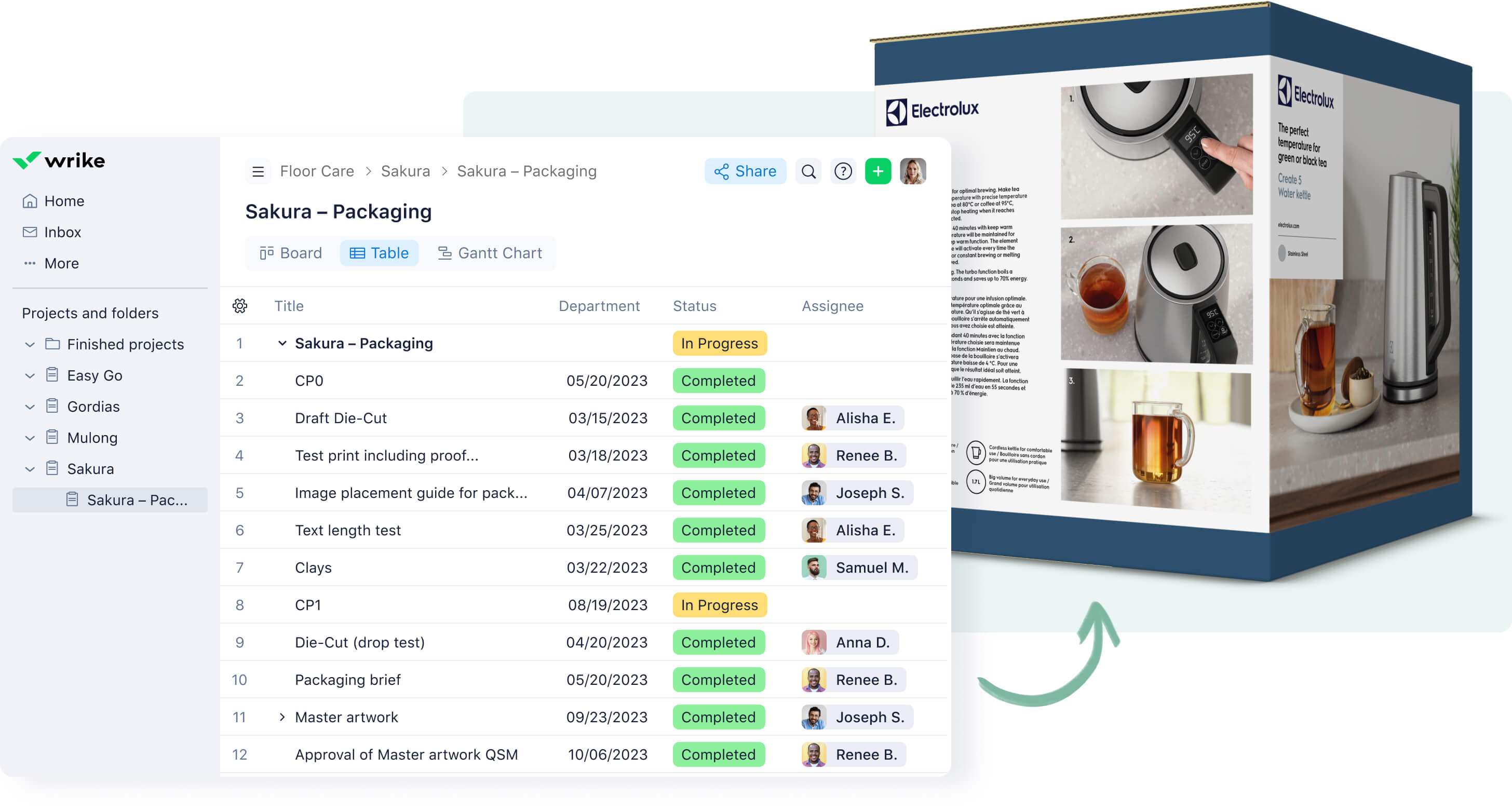
Wrike is their new workflow automation platform, and the automations have helped everyone on the design team by:
- Assigning people to each task to ensure all the work is covered
- Clarifying the action needed by clearly defining the workflow stages
- Visualizing the timeline and deadlines, including the dependencies between tasks, in a shared Gantt chart.
Example 3: Onboarding workflow
Bringing a new employee into the organization is one of the most cross-functional processes in a company. Human resources, IT, finance, and hiring managers all play a role, but their critical steps are often tracked in spreadsheets and informal checklists. This can lead to delays, missed paperwork, and often a negative experience for the new hire.
With an automated employee onboarding workflow, the process can be streamlined from the moment a candidate submits their signed offer letter.
For example, when HR submits a new hire request, an automation can capture the essential details from the employee’s paperwork — like their start date, department, location, and manager — and populate an onboarding project template and schedule to guide the process.
From there, tasks are automatically assigned to the right stakeholders when the employee completes each stage of onboarding — for example, IT can receive a task to give them access to essential systems based on their new role, facilities can be notified to prepare workspace access, finance can be prompted to set up payroll, and key milestones can be shared with the hiring manager so they can ensure that the new employee is settling in.
In the case of onboarding, automated reminders can also keep these different departments accountable without HR having to chase documentation. If a critical task isn’t completed within a certain timeframe, automation rules notify the appropriate team leader before it delays a subsequent task.
The result is a consistent, repeatable onboarding process that reduces manual coordination, keeps the process organized, and gives all teams involved greater visibility into how new team members are progressing through their training and probationary periods.
Telecommunications company Arvig saves over 900 hours per year on onboarding thanks to Wrike’s automations. For new employees, it uses Wrike’s request forms and templates to eliminate 3+ hours of admin work per employee, reducing project costs by 20%.
They told us: “With Wrike’s integration capabilities, we were able to write a script that automatically assigns or reassigns the right managers to tasks when the team creates a new project from the template. Now, our HR team can simply create a project from the Wrike template using a Wrike request form, and they’re done — just like that.”
Best practices for implementing workflow automation
Before you dive headfirst into automation, it’s worth taking stock of these best practices:
- Start small and scale: Focus on automating one repeatable task or workflow first. Once you’ve proven the value of the automation, expand gradually to more complex processes.
- Involve key stakeholders early: Collaborate with the teams who’ll use the automation daily. Their insights help design workflows that fit real-world business needs and encourage adoption.
- Monitor, measure, and optimize: Use dashboards and KPIs to track the performance of your workflows. By regularly reviewing your automated workflows, you can adjust for process changes, inefficiencies, or new opportunities.
- Maintain human oversight where needed: Automate routine tasks, but keep manual review points for critical decision-making or exceptions. This gives you control over the manual processes that can’t be repeated, without slowing down your standard workflows.
- Document your automated processes: Keep clear records of how your workflows are structured, so teams can troubleshoot, update, or scale as needed.
- Choose workflow automation software that scales with you: The best workflow automation tools integrate easily with your existing systems to avoid silos and manual data transfers, and scale to connect workflows across teams.
Of all these tips, it’s the final one, choosing the right automation software, that will make the biggest difference to your team. So, in the next part of this post, we’re going to focus on how to choose software to power your workflow automations and the key features of our platform, Wrike.
Key features to look for in workflow automation software
Choosing the right workflow automation or orchestration software can make a meaningful difference in how smoothly your teams work day to day.
Based on our experience of working with thousands of companies worldwide, these are the features worth prioritizing when you evaluate workflow automation platforms:
- A user-friendly, low-code interface: Effective automation should be easy to set up and accessible to the people who use it every day. Look for platforms with intuitive, low-code or no-code builders, drag-and-drop functionality, and preconfigured automations for common workflows. When teams can manage automation themselves, adoption is faster, and change feels far less disruptive.
- Customizable request forms and work intake: Standardizing how work enters your system helps eliminate confusion and manual rework. Customizable request forms ensure the right information is captured upfront, tasks are routed correctly, and teams can get started quickly without chasing missing details.
- Strong integration capabilities: Workflow automation works best when it fits naturally into your existing tech stack. Platforms with broad, well-designed integrations make it easier to connect tools, share data, and keep work moving. Wrike, for example, offers 400+ integrations with widely used tools like Slack, Microsoft Teams, Salesforce, and Google Drive.
- Flexible rules and conditional logic: Work rarely follows a single, linear path. Look for automation tools that allow you to set rule-based triggers, actions, and conditions that adjust as priorities change or tasks move through different stages. This flexibility helps workflows stay aligned with real-world processes.
- Customization across teams and projects: No two teams work the same way. The best automation platforms support customization at every level — across departments, projects, and individual tasks — while also offering role-based permissions to maintain consistency, clarity, and security.
- Real-time dashboards and reporting: Clear visibility helps teams stay aligned and improve continuously. Look for tools that offer real-time dashboards and reporting, with both high-level overviews and detailed task insights. Built-in analytics make it easier to spot bottlenecks, track performance, and make informed improvements.
- AI capabilities: AI can significantly enhance workflow automation by reducing setup time and uncovering opportunities to improve. Features such as predictive insights, intelligent categorization, and automation recommendations help teams work smarter and adapt faster.
- Security and access controls: Strong security features — including role-based access, encryption, and audit trails — are essential, especially when managing sensitive data. And with hybrid and remote work now the norm, mobile access ensures teams can stay connected to their workflows wherever work happens.
- Prebuilt templates for a faster start: Templates make it easier to get started without sacrificing flexibility. Libraries of customizable templates — for approvals, onboarding, IT requests, or marketing workflows — help teams launch quickly and refine processes over time.
How Wrike’s workflow automation stacks up
With this checklist in mind, let’s look at how the workflow automation features in our platform, Wrike, can make your team’s work smoother, faster, and more collaborative.
Easy setup and rollout
Wrike’s no-code setup process is quick and straightforward. Our platform includes dozens of ready-to-use automation use cases divided into categories, including @mentions, assignment and workload, custom fields, and others — all customizable to help you build the workflow your team needs.
Creating custom automation rules is quick and easy, too.
Suppose your creative and design team is working on a landing page for a new product launch. Your first automation could mean that when the status of the landing page doesn’t change from “Pending review” to “Approved” or “Revisions requested” for five days, then a manager comments and tags the reviewer with a reminder. Then, once they respond to the reminder and the status of the same task changes to “Approved,” Wrike can automatically mark the task as “To publish.”

For every automation rule, there can be one trigger (“when” statement) and as many as ten actions (“then” statements). To follow the example above, changing the task's status to “To publish” could start by routing the files to a new folder, as well as notifying the webmaster responsible for creating the new page and updating the project manager on the progress.
With Wrike’s workflow management tools, you can automate everyday and complex workflows from end to end, handling everything from task initiation to completion, in just a few simple steps.
Seamless integrations
Wrike offers seamless, no-code integration with more than 400 apps, tools, and software platforms your team uses in their workflows.

Whatever tools your team prefers to use for their tasks, you can create a more efficient, integrated workflow when you work in Wrike — it’s as simple as carrying the when/then rules we mentioned above into workflows that span the two platforms.
For example:
- When a task is assigned, then send an email using Gmail
- When a payment is received, then update the customer record in QuickBooks
- When a deadline is two days out, then send a reminder via Slack
Advanced customization
With Wrike, you can manage different types of workflow automation at every level, from company-wide to department-wide and all the way down to the task level.
Every team has different tasks to complete and benefits from different automation rules. So, in Wrike, you can set automation rules at the team level, which only apply to activities in that team’s workflow rather than the whole project.
Wrike’s customization goes even further with custom item types. With automation rules for specific tasks, every task can have its own custom workflow, so you can be sure you’ve ticked all the boxes before you mark it complete.
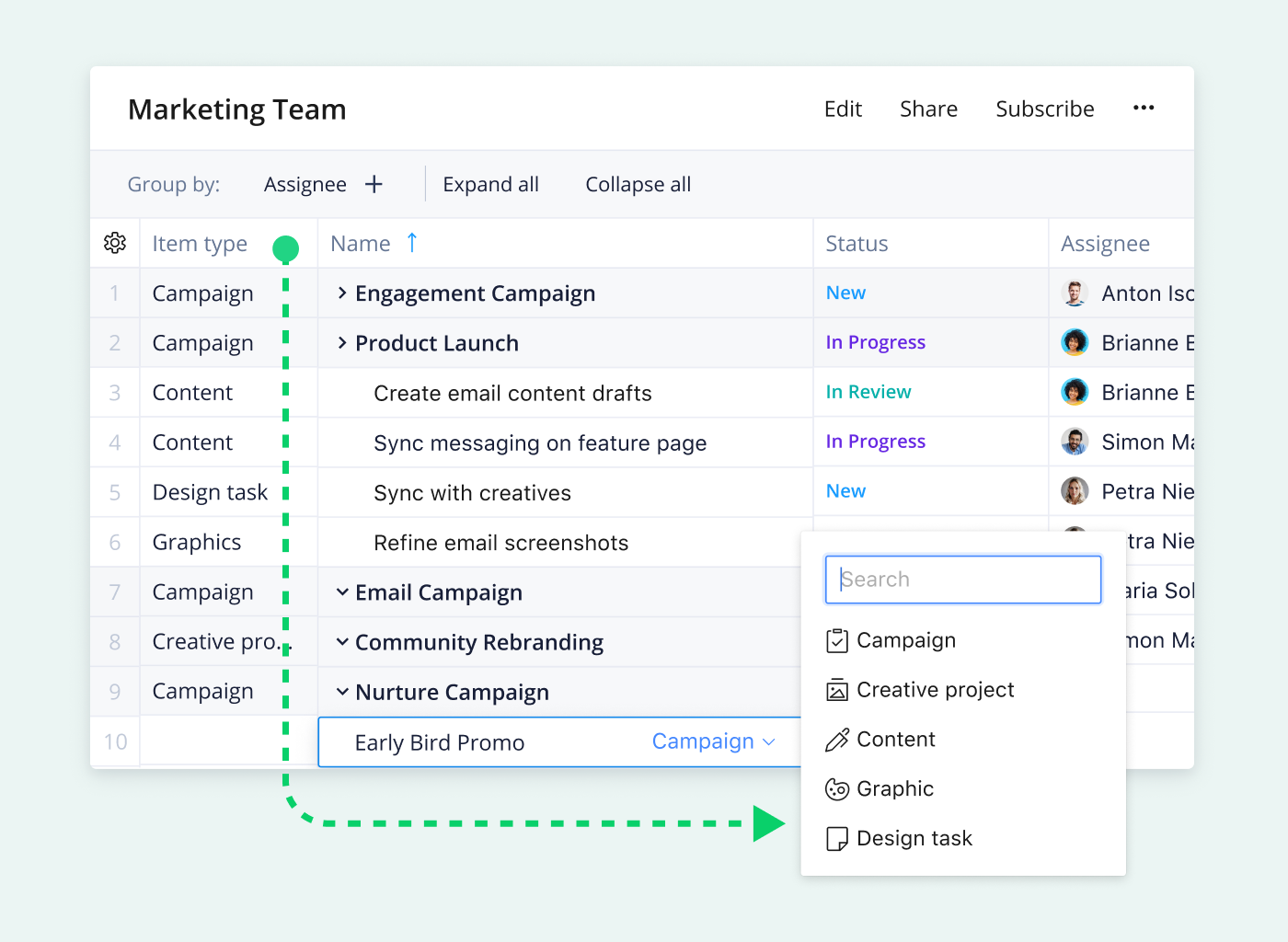
Let’s say a sales and marketing team uses Wrike alongside their customer relationship management (CRM) software to manage their leads.
Their goal is to automate the process of assigning follow-up tasks to team members based on the lead’s status as it moves from “New” to “Contacted” to “Qualified.” With Wrike’s customization features, you can set up automation rules that apply only to certain leads that meet specific criteria.
Customization also extends to Wrike’s dashboards and reports.
Wrike’s dashboard options mean you can view your workflow from multiple angles. The dashboards automatically generate different views of the project data, eliminating the need to manually update a tracking system as the task changes status.
Whether it’s displaying all tasks across a project or filtering them by priority or timeframe, these dashboards give users the most relevant information quickly and easily.

Individual team members can also switch between macro and micro views of the projects they’re assigned to, with dashboard widgets that filter data to show:
- Every task they’re responsible for throughout the project
- Their tasks for the current day or week
- A chronological view of every project update
This range of visibility helps you make more informed decisions. Team members can effectively prioritize their tasks, and managers can easily track progress, identify bottlenecks, and find areas where they need to offer more support. Plus, when team members have a shared view of project statuses and priorities, you eliminate the need for time-consuming status meetings or lengthy email chains.
Real-time reporting and analytics
Wrike’s built-in analytics make it easier to report on and learn from your workflows. Our analytics features look at large datasets and identify patterns in real time. With pre-designed report templates and highly customizable reporting dashboards, you can refine your data analysis and dive deeper into advanced insights.
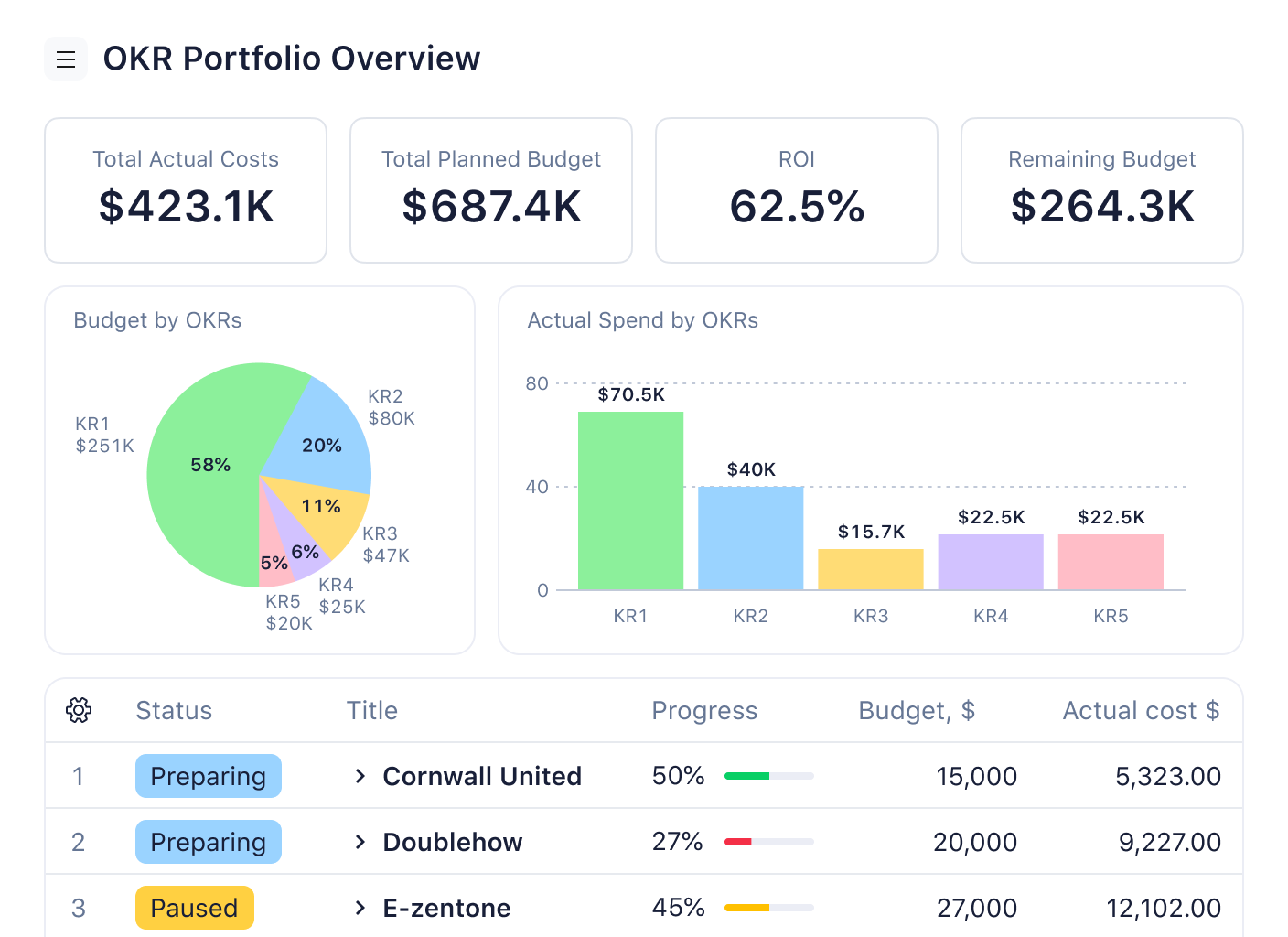
Then, this workflow data — on everything from task completion rates, project progress, and team workload distribution to resource utilization — automatically populates your interactive Wrike dashboards.
Groundbreaking Work Intelligence®
Many examples of workflow automation in Wrike are possible because of AI. Our groundbreaking Work Intelligence® AI makes it easier than ever to automate your workflows. Plus, Wrike identifies automation opportunities throughout your workflow, even ones you might not have considered, to enhance your efficiency with suggestions tailored to your organization.
As the AI observes certain behaviors, it begins to suggest actions to benefit the team. For example, as it observes task assignment patterns, it might suggest the most suitable team members for specific tasks based on their expertise and availability.
Wrike’s AI also tracks task priorities, user activity, and task urgency. For example, it might suggest ways to reprioritize your tasks based on changing project requirements and critical deadlines. This includes project risk prediction features to identify factors that could lead to a missed deadline — like project complexity, task quantity, and how many people have been assigned.

Based on this analysis, Wrike assigns each project a low, medium, or high risk level so you can prioritize and address projects at the highest risk while you still have plenty of time to react.
Optimize your workflows with intuitive automation
Workflow automation doesn’t have to mean complex systems or a heavy technical lift. At its core, it’s often as simple as “when this happens, do that.” When thoughtfully applied, automation supports your team, freeing everyone to focus on the work that actually drives results.
With easy setup, extensive integrations, customizable workflows, real-time dashboards, advanced reporting, and AI-powered automation recommendations, Wrike offers a comprehensive platform for designing, optimizing, and scaling workflow automation across your organization.
If you’re ready to reduce friction, improve visibility, and help your team do their best work, book a demo to see how Wrike’s workflow automation can support your goals.
FAQs
Workflow automation uses conditional logic to trigger specific actions based on defined rules — for example, automatically routing a request for approval only if the budget exceeds a certain amount.